


How the Tools Work
Each of our three online tools takes a few steps. Here is what you do, what you see at each step, and how to read, translate and share a tracking page.
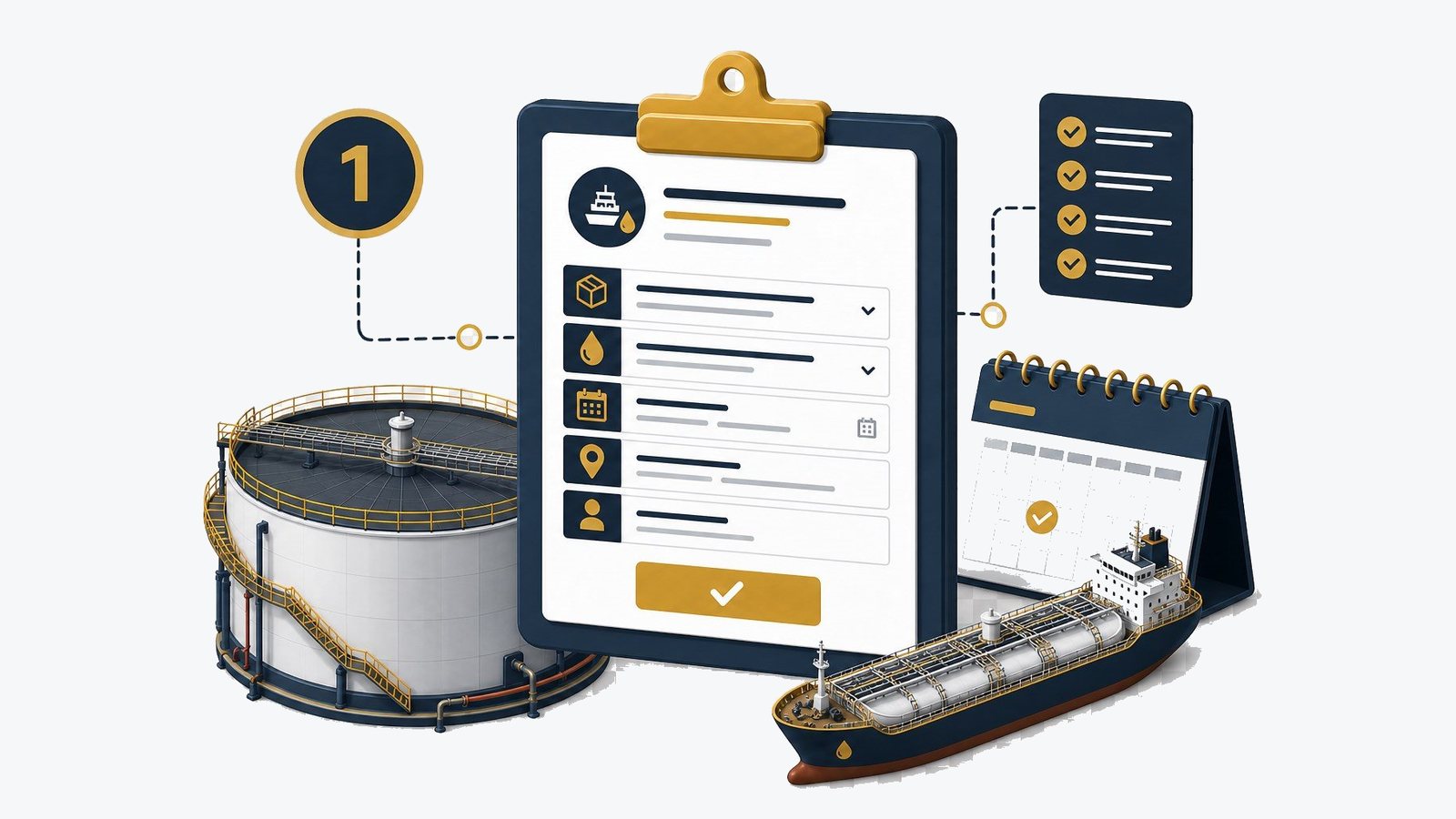
The three tools are built for people outside the terminal: traders, buyers, bankers, inspectors and receivers who need an answer without a phone call. All three run in a standard web browser, and the tracker and the availability page need no account. The buyer portal is the exception: it opens only after KYC verification.
This page walks through each tool step by step, then explains how to read a tracking page, how to change the display language and how to share a link safely. If anything you see does not match your own records, contact us before acting on it, using the details published on this website.
Cargo & Vessel Tracking, step by step
You need only the tracking number. The public tracker and any private link show the same record, so use whichever you were given. If a number returns no result, check it against the document it came from, then contact us. Do not rely on a number supplied only by a seller you have not verified.
| Step | What you do | What you see |
|---|---|---|
| 1 | Open the public tracker, or open your private link | A search box, or the cargo record directly |
| 2 | Enter the tracking number | The route on a map with every waypoint from A to Z |
| 3 | Tap or click a waypoint | Its status, time and plain-language description |
| 4 | Scroll the milestone list | Each completed step in order, with the current one marked |
| 5 | Check the conveyance | The type and map symbol of whatever carries the cargo on this leg |
Tank-Farm Availability, step by step
The availability page needs no account. It shows the tanks a terminal chooses to list, with the state of each one and the location of each tank farm on a map. Use it to narrow down where to ask, then contact our storage team. Nothing on the page commits you, or us, to a booking.
| Step | What you do | What you see |
|---|---|---|
| 1 | Open the availability page | A map of tank farms and a list of tanks |
| 2 | Open a tank farm pin | The tanks at that address and the state of each |
| 3 | Read the columns | The details the terminal shows, such as lessor, lessee, city and phone |
| 4 | Look at a booked tank | A green light with the booked days and the price |
| 5 | Contact storage | Our storage team, or the phone shown for that tank farm |
Buyer / Receipt-Holder Portal, step by step
The portal opens only to verified parties. KYC comes first and sign-in comes after, never the other way round. The steps below assume your verification is complete and your account has been linked to the receipts and tanks you hold under the Tank Storage Agreement.
| Step | What you do | What you see |
|---|---|---|
| 1 | Complete KYC with our portal team | Confirmation that your account is approved |
| 2 | Sign in with receipt number, username, client ID or email | Your account overview |
| 3 | Open an allocation | Grade, quantity in MT and bbl, tank number, terminal and status |
| 4 | Open the documents | TSR, certificates of quality and quantity, allocation report, title transfer |
| 5 | Compare anything you were sent elsewhere | Whether it matches the record in your account |
Reading a tracking page
A tracking page has three parts: the header, the map and the milestone list. Read them together. The header tells you what you are looking at, the map tells you where the cargo is, and the list tells you what has already happened and what comes next.
- Header: tracking number, origin, destination and current conveyance
- Map: waypoints A to Z joined by the route line, with the conveyance symbol at the current position
- Milestones: each status in order, completed steps marked and the current step highlighted
- Descriptions: one plain sentence per status, written for non-specialists
- Times: when each milestone was recorded
Languages and sharing
Every tracking page, public or private, can be shown in any language the reader selects. Changing language changes the display only: the record, the times and the figures stay the same, so two readers in different countries looking at one link see the same cargo at the same stage.
To share, send the link. A private link stays active indefinitely by default, or until an end date set when it is created. Anyone with the link can view it, so send it only to people who need it. To give someone a time-limited view, ask us for a private link with an end date.
How it works
- 1Get your number
Your tracking number comes from us or from your counterparty.
- 2Open the tracker
Enter the number on the public tracker, or open your private link.
- 3Read the chain
Follow the waypoints from A to Z on the map and in the list.
- 4Choose a language
Switch the display language at any time; the record stays the same.
- 5Share the link
Send the link to whoever needs it, not a screenshot.
Frequently asked questions
Do I need to install anything?
No. All three tools run in a standard web browser on a computer, tablet or phone. The tracker and the availability page need no account; the buyer portal needs sign-in credentials issued after KYC.
A seller I do not know gave me a tracking number. Is the cargo real?
A tracking number shows a movement record. It is not proof of ownership or of a sale. Before paying anyone, confirm the transaction with your counterparty through verified channels and, for stored product, ask the verified holder to confirm it in the buyer portal, or call us.
Can I change the language on a private link?
Yes. Private links and the public tracker offer the same language choice. Each reader picks their own, so a buyer and a seller can read the same link in different languages at the same time.
How do I stop a private link from working?
Ask us to set or bring forward its end date. Links without an end date stay active indefinitely, which suits most commercial records, but a link sent to a party with a temporary role can be limited to the period it is needed.
Related
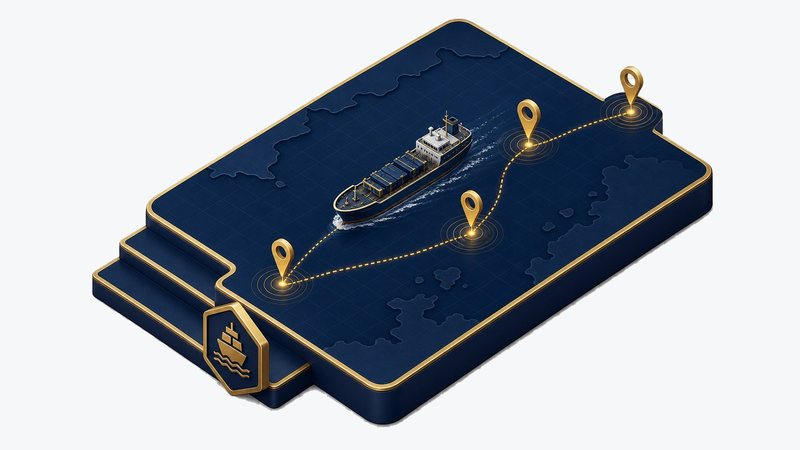
Cargo & Vessel Tracking
Every waypoint on a map, A to Z, with a plain-language status from nomination to custody transfer.
Read more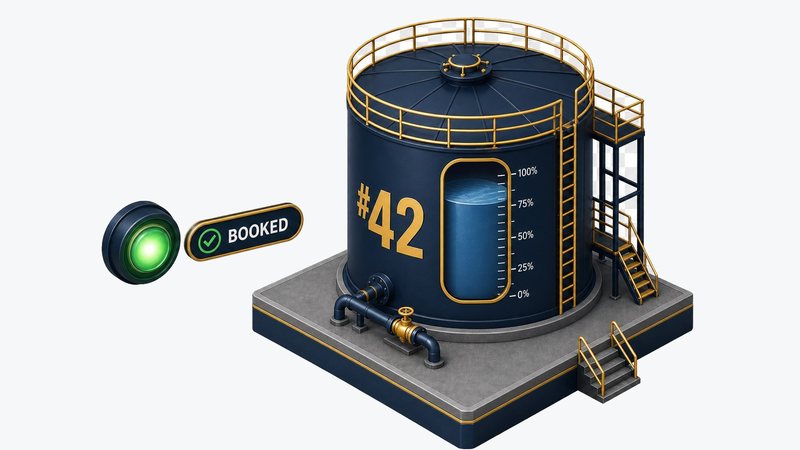
Tank-Farm Availability
Which tanks are free, reserved or booked, with days and price, and each tank farm on a map.
Read more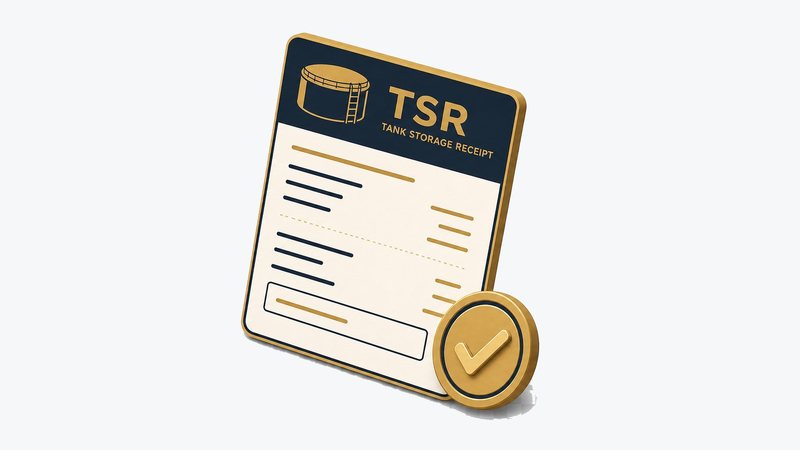
Buyer / Receipt-Holder Portal
KYC-verified buyers see grade, quantity, tank, status and documents for the product they hold.
Read more
Integrity & Fraud Prevention
How advance-fee oil-trade fraud works, what we never do, and how to verify a CorEnergy document.
Read moreTry the tracker
Have a tracking number? Open the public tracker and follow the cargo from A to Z.